1.1 How this guide works
The guide is split into parts that follow a player's week: get set up, find a court, join a club, play events.
- Where to find it:
- The Help Center button in the header opens this guide in a new tab, so you keep your place on the page you were on.
- Who can use it:
- Everyone
How it works
Every article follows the same shape: where to find it, who can use it, how it works, the steps, and what happens next.
Button and tab names are in bold, exactly as you see them in the app.
How to find an answer fast
- Type a word in Filter guide sections, for example refund or RSVP.
- The contents and the articles narrow to the sections that use every word you typed.
- Tap a title in the contents to jump to it.
What happens next
- Still stuck? Tap Get Support at the top of the guide or the Help button in the corner.
See also: Contact support, What is DinkScene?
2.1 What is DinkScene?
DinkScene is where pickleball players in the Philippines find courts, clubs and events, and book them.
- Where to find it:
- Courts, Clubs and Events sit in the header menu on every page.
- Who can use it:
- Everyone
How it works
Browsing courts, clubs and events is free and does not need an account. Sign in when you want to book, join, RSVP or register.
DinkScene never holds your money. When something costs money, you pay the venue, club or organizer directly, and they confirm it.
How to look around
- Open Courts to find a place to play.
- Open Clubs to find a group that plays regularly.
- Open Events for tournaments, clinics, socials and Club Nights.
What happens next
- When you are ready to book or join, create a free account.
See also: Create your account, Finding your way around
2.2 Create your account
A free account lets you book courts, join clubs and register for events.
- Where to find it:
- Sign In at the top right of any page, then Create Account.
- Who can use it:
- Everyone
How it works
You sign up with your name, email and a password. We then ask you to confirm the email is yours.
How to create an account
- Tap Sign In at the top of any page.
- Tap Create Account.
- Add your name, email and a password, then send the form.
What happens next
- We email you a link to confirm your email. Open it before you sign in.
See also: Confirm your email, Your Player Card
2.3 Confirm your email
Confirming your email proves it is yours and lets you sign in.
- Where to find it:
- In the email we send right after you sign up.
- Who can use it:
- Everyone
How it works
Until you confirm, signing in shows "Confirm your email first". The link in the email finishes your sign up.
How to confirm your email
- Open the email from DinkScene in your inbox.
- Tap the link inside it.
- Sign in with your email and password.
How to get a new link
- Check your spam or promotions folder first.
- On the confirm screen, tap Resend the Link.
- Wait a minute, then check your inbox again.
What happens next
- Once confirmed, you can sign in and fill in your Player Card.
See also: Troubleshooting, Sign in and passwords
2.4 Sign in and passwords
Sign in with your email and password, and set a new password any time you forget it.
- Where to find it:
- Sign In at the top right of any page.
- Who can use it:
- Everyone
How it works
A reset link goes to the email you signed up with. Only someone with that inbox can choose a new password.
How to reset your password
- Tap Sign In, then Forgot password?
- Enter the email you signed up with and tap Send Reset Link.
- Open the email we send and choose a new password.
What happens next
- Sign in with your new password. Your bookings, clubs and tickets are all still there.
See also: Never share your password, Troubleshooting
2.5 Your Player Card
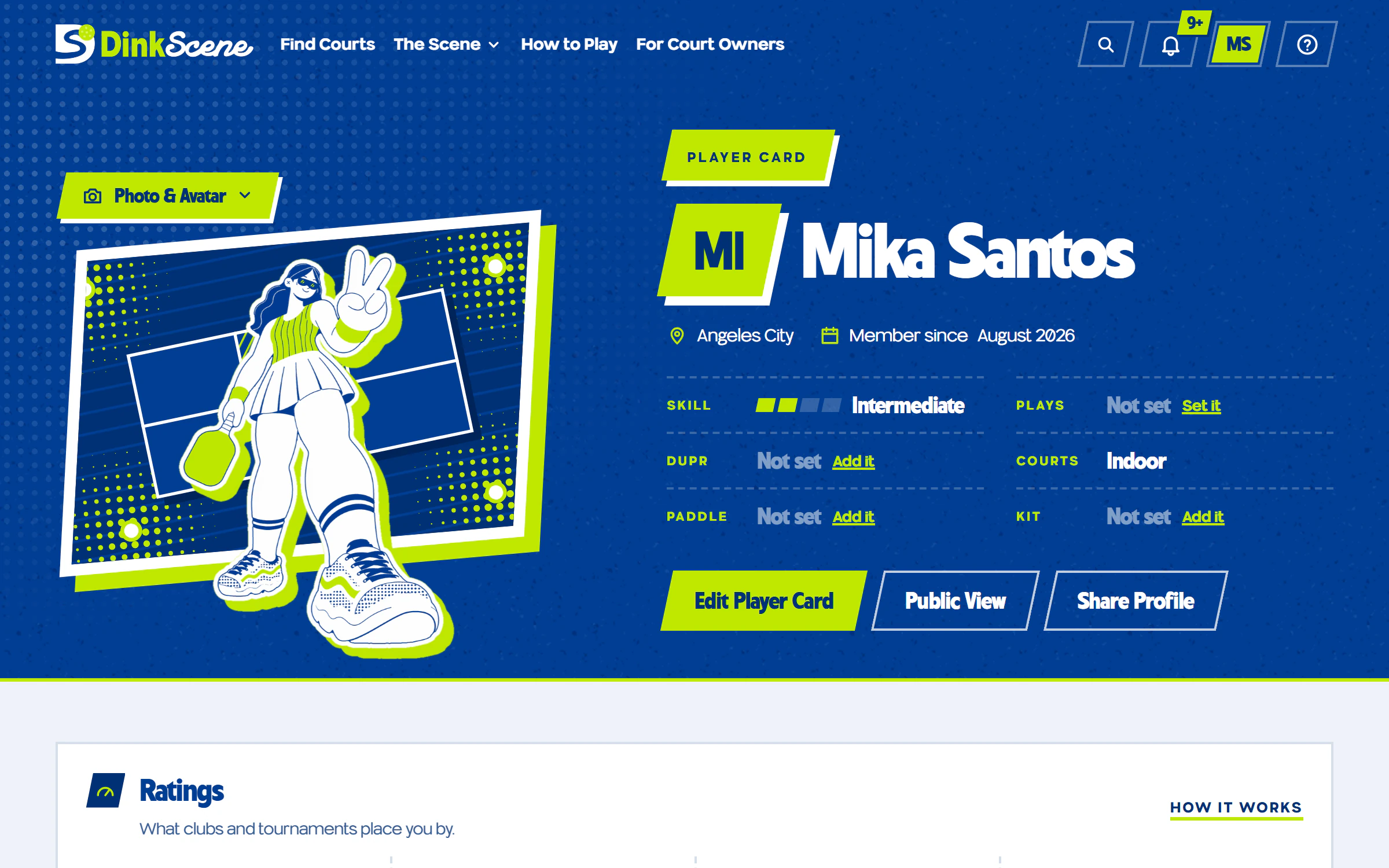
Your Player Card shows other players who you are on court.
- Where to find it:
- Your account menu at the top right, then Player Card.
- Who can use it:
- Signed-in players
How it works
It holds your name, photo, home city and level. Everything on it is what you tell us.
Your home city helps players near you find you. We remove location data from photos you upload.
How to fill in your Player Card
- Open your account menu and choose Player Card.
- Add a photo from your phone, or tap Create My Avatar to pick a drawn one.
- Add your home city and your Self-Rating, then save.
What happens next
- Clubs see your level when you RSVP, and use it to place you in a night.
See also: Self-Rating and DUPR, What places you in a night
2.6 Finding your way around
The header and your account menu take you everywhere you need to go.
- Where to find it:
- The header at the top of every page.
- Who can use it:
- Everyone

How it works
The header holds the main menu, the search, the bell for notifications, your account menu and the help button, which opens this guide in a new tab.
- Search finds courts by city or venue name.
- The bell shows notifications: confirmed payments, club answers and new Club Nights.
- Your account menu holds Saved Courts, Saved Events, My Clubs and your Player Card.
- The Help Center button opens this guide in a new tab.
How to reach your account pages
- Sign in.
- Tap your photo or initials at the top right.
- Pick the tab you need.
What happens next
- Anything you save, join or book shows up in those tabs.
See also: Save courts, Your clubs and night notifications
3.1 Find a court
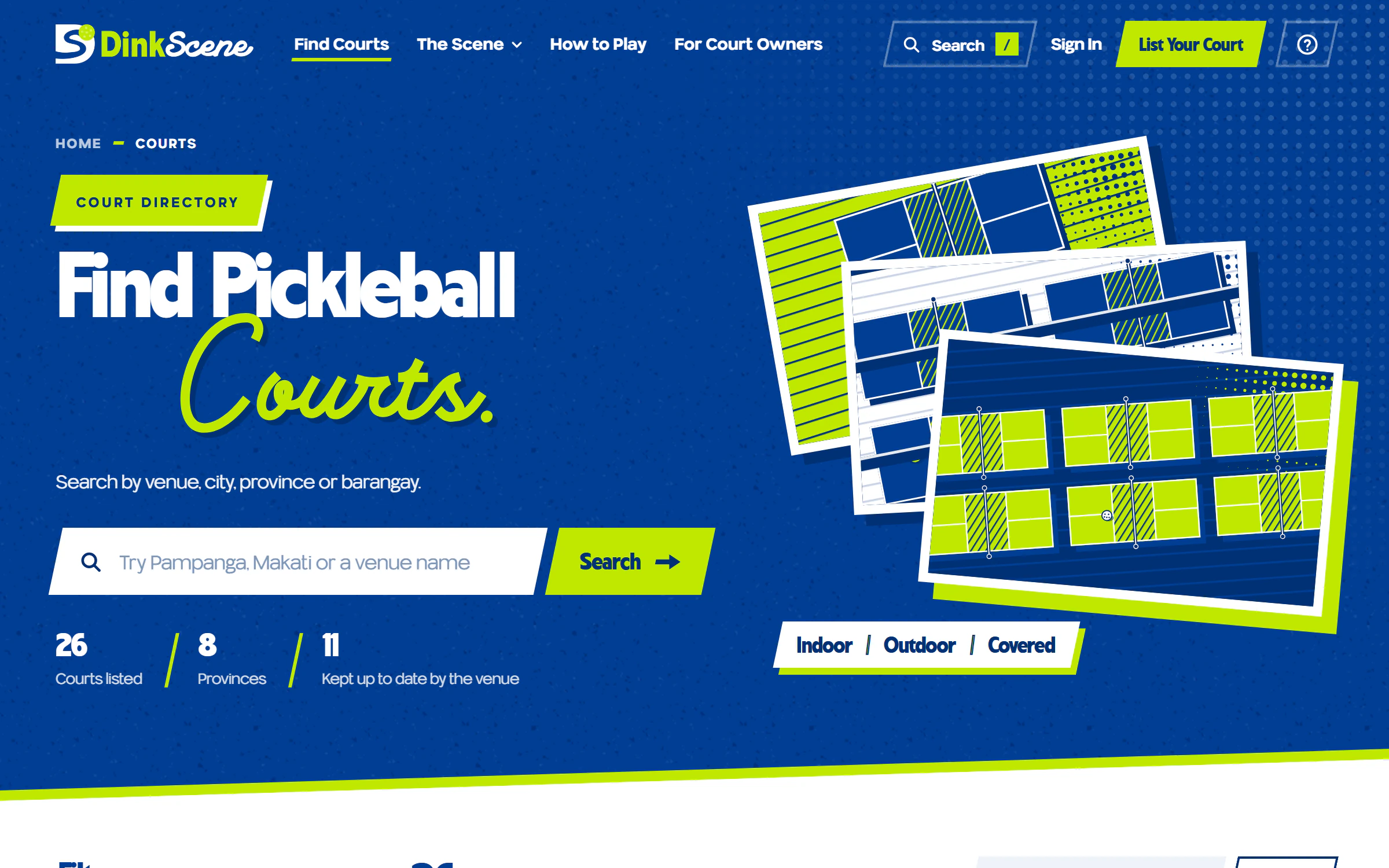
Search every listed court by city or venue, then narrow it down.
- Where to find it:
- Courts in the header menu, or the Search box at the top.
- Who can use it:
- Everyone
How it works
Each card shows the venue, its city and what it offers. Filters narrows the list; Map pins every court.
How to find courts near you
- Type a city or venue in Search.
- Tap Filters to narrow by indoor or outdoor, open play, lessons and more.
- Tap Map to see the courts pinned on a map.
- Tap a card to open the court's page.
What happens next
- The court's page shows hours, rates and how the venue takes bookings.
See also: Book a court and pay, Save courts
3.2 Save courts
Keep the courts you play at one tap away.
- Where to find it:
- The Save button on a court's page.
- Who can use it:
- Signed-in players
How it works
Saved courts are listed in the Saved Courts tab of your account.
How to save a court
- Open the court's page.
- Tap Save.
- Tap Saved again any time to remove it.
What happens next
- Find it later under Saved Courts in your account menu.
See also: Find a court, Finding your way around
3.3 Book a court and pay
Courts that take bookings on DinkScene ask you to pay the venue first, then the venue confirms.
- Where to find it:
- The Book Now button on a court's page.
- Who can use it:
- Signed-in players
How it works
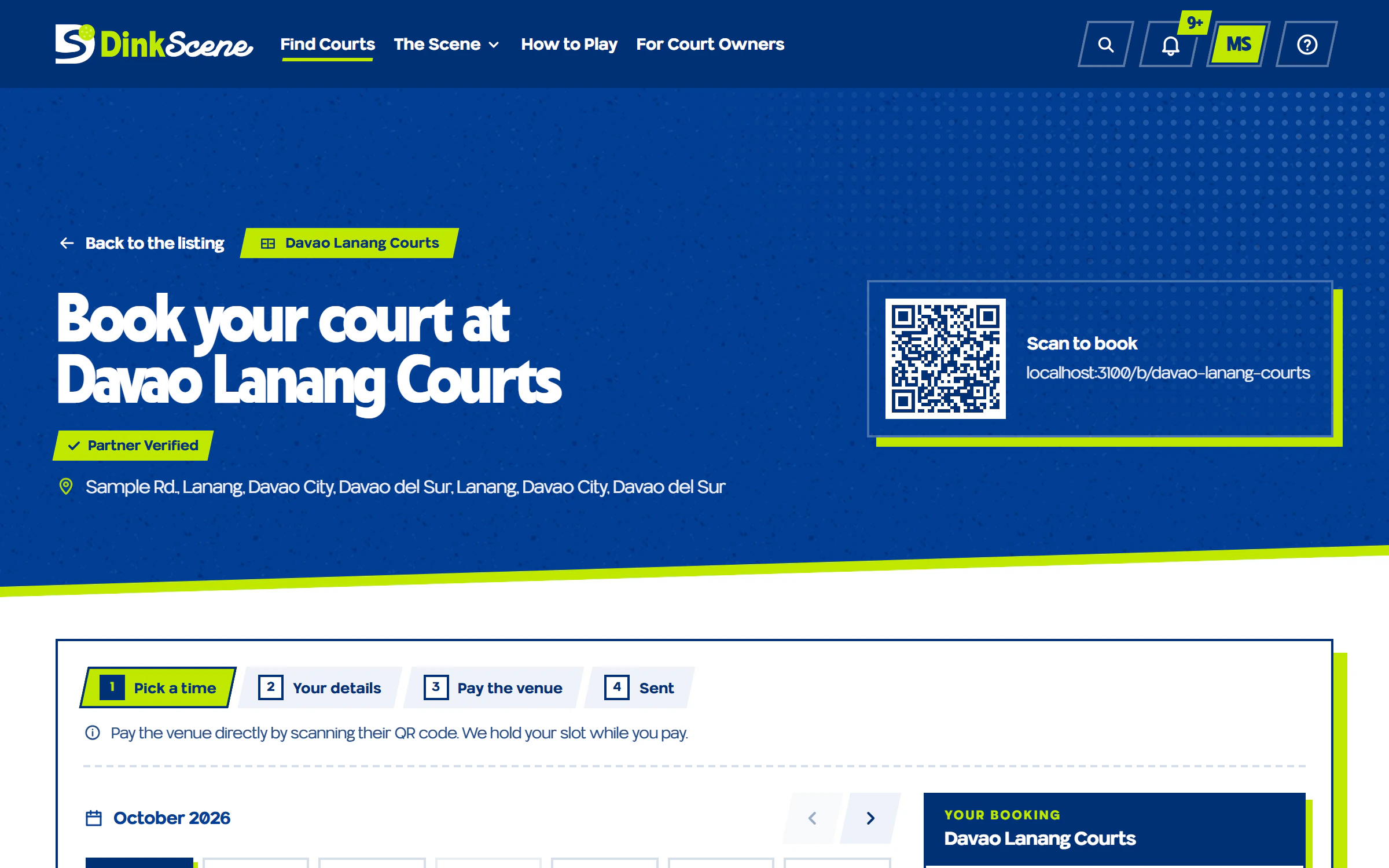
When you tap Hold This Time, the slot is held for you for a set number of minutes while you pay the venue directly.
If the hold runs out before you send your payment, the slot frees up and you pick another time.
How to book a court
- Open the court's page and tap Book Now.
- Pick a day, then tap an open time. Drag across hours to book longer.
- Tap Continue, add your name and mobile number, then tap Hold This Time.
- Scan the venue's QR with GCash, Maya or your bank app and pay the amount shown.
- Attach a screenshot of your payment and tap I Have Paid.
What happens next
- Your booking shows Payment sent. Your slot stays reserved while the venue checks it.
- It changes to Confirmed once the venue sees your payment.
- If it says Declined, read the venue's note and tap Pay Again if it asks.
See also: Keep your reference number, Troubleshooting
3.4 When a court books by chat
Some venues take bookings their own way instead of online.
- Where to find it:
- A court's page, where the Book Now button would be.
- Who can use it:
- Everyone
How it works
Those courts show how to reach them: Book via Messenger, Call to Book, Text to Book or their website.
How to book a court by chat
- Open the court's page.
- Tap the contact button it shows.
- Agree the time and payment with the venue directly.
What happens next
- The venue confirms with you in that chat. It does not show in your DinkScene bookings.
See also: Book a court and pay, Suggest an edit
3.5 Suggest an edit
Tell us when a court's details are wrong or out of date.
- Where to find it:
- Suggest an Edit on a court's page.
- Who can use it:
- Everyone
How it works
Our team checks every suggestion before anything on the listing changes.
How to suggest an edit
- Open the court's page.
- Tap Suggest an Edit.
- Say what changed and send it.
What happens next
- We check it with the venue and update the listing if it is right.
See also: Find a court, Contact support
4.1 Find a club
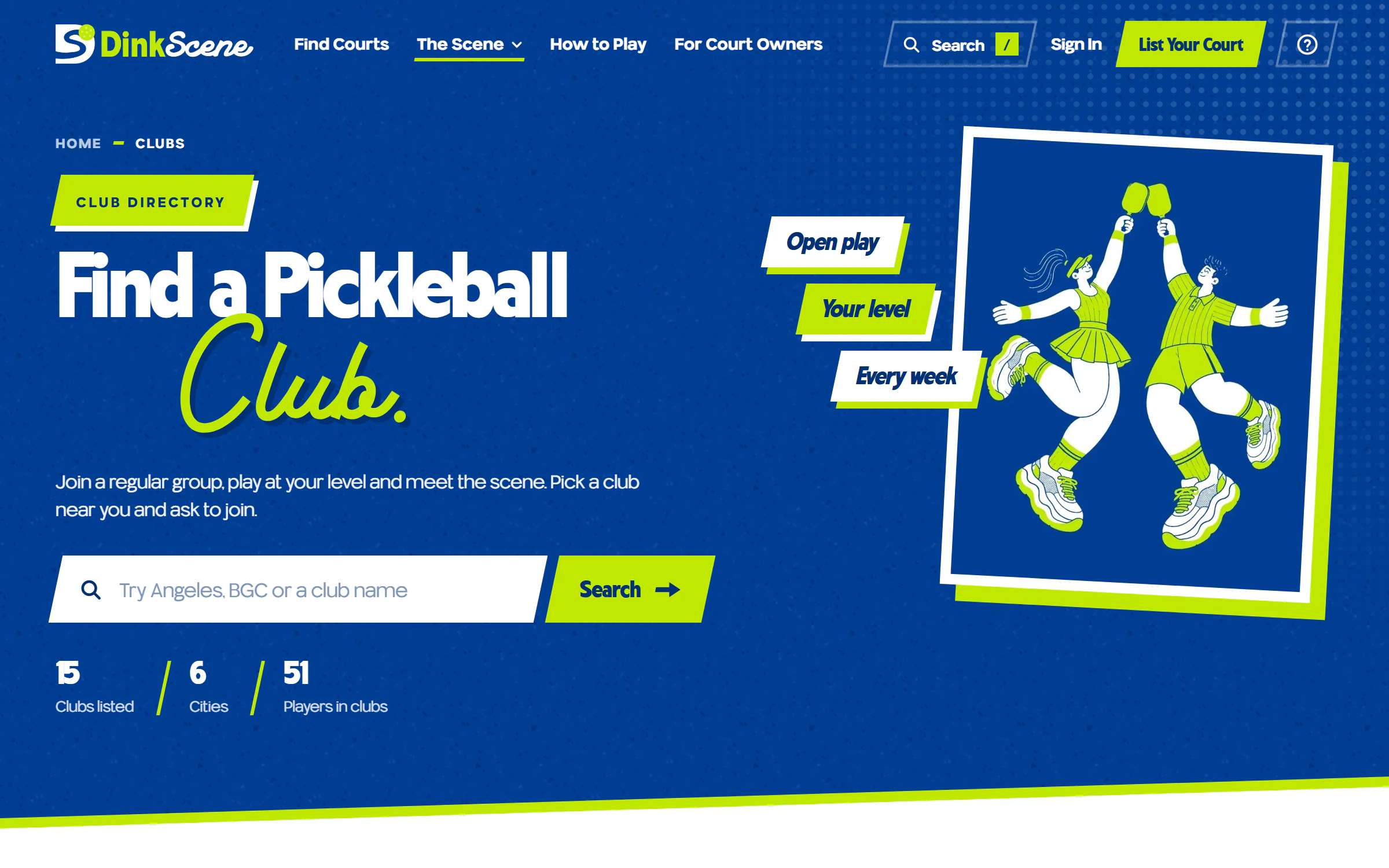
Clubs are groups that play together on a regular schedule.
- Where to find it:
- Clubs in the header menu.
- Who can use it:
- Everyone
How it works
Each card shows the club's city and how it takes new members: Open to join, Request to join or Invite only.
How to find a club
- Open Clubs.
- Tap Filters to narrow by city or level.
- Tap a card to open the club's page.
What happens next
- The club's page shows its nights, its levels and how to join.
See also: Join a club and the joining fee, Find events, including Club Nights
4.2 Join a club and the joining fee
Join right away, or send a request, and pay the joining fee first if the club asks for one.
- Where to find it:
- The join button on a club's page.
- Who can use it:
- Signed-in players
How it works
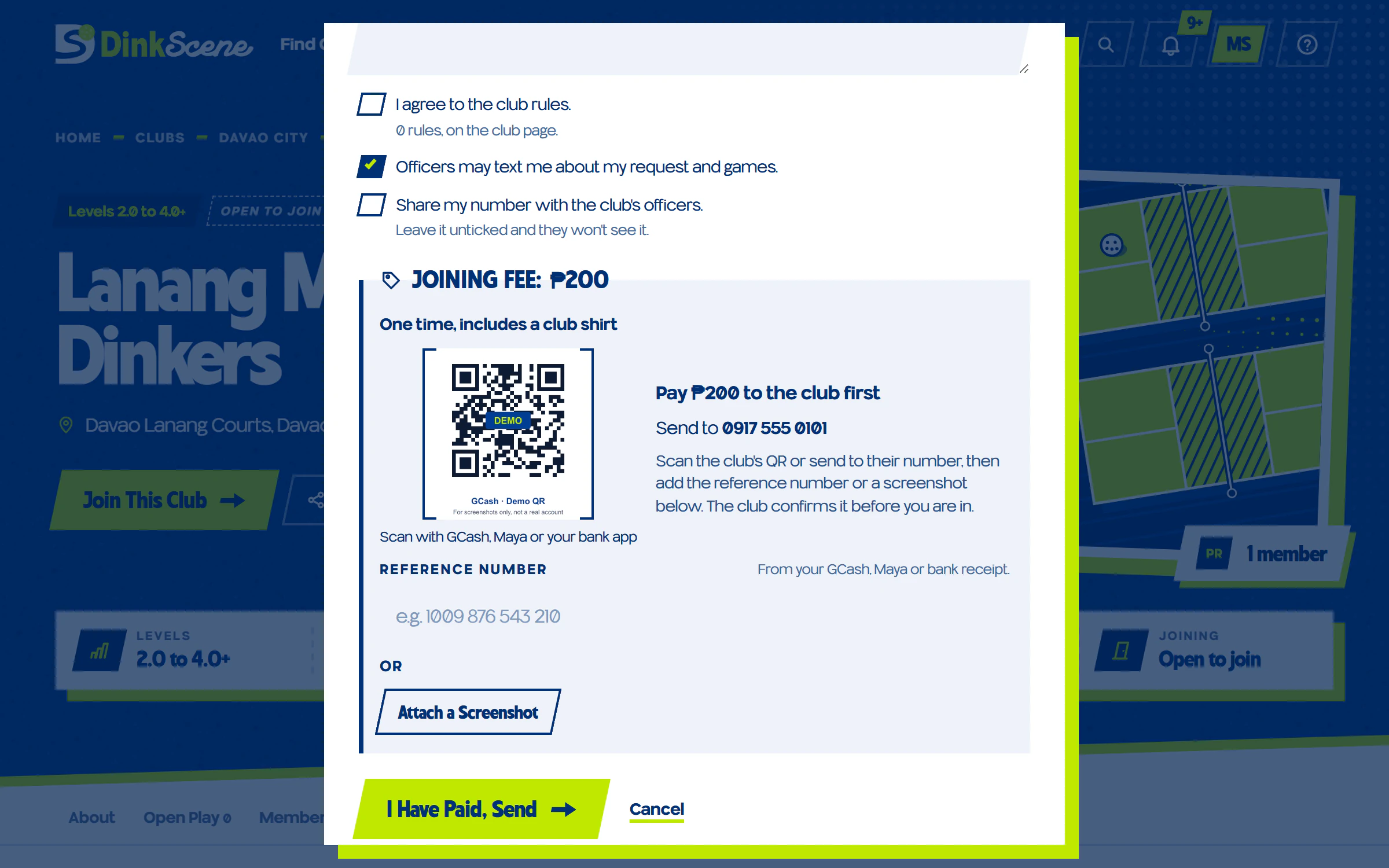
Join This Club adds you right away. Request to Join and Ask to Join send your request to the club's officers.
Some clubs ask for a one time joining fee. You pay the club directly before you are in.
How to join a club
- Open the club's page.
- Tap Join This Club, Request to Join or Ask to Join.
- If the club asks for a joining fee, scan the club's QR or send to their number.
- Attach a screenshot of your payment (the reference number is optional), then tap I Have Paid, Send.
What happens next
- With a fee you see Payment sent, waiting for the club to confirm. An officer checks the club's wallet, then you are in.
- Once you are in, the club shows in My Clubs and you hear about its new nights.
See also: RSVP to open play nights, How paying works on DinkScene
4.3 RSVP to open play nights
Tell the club you are coming so the host can plan the games.
- Where to find it:
- A night on the club's page, in My Clubs, or a Club Night on the Events page.
- Who can use it:
- Club members
How it works
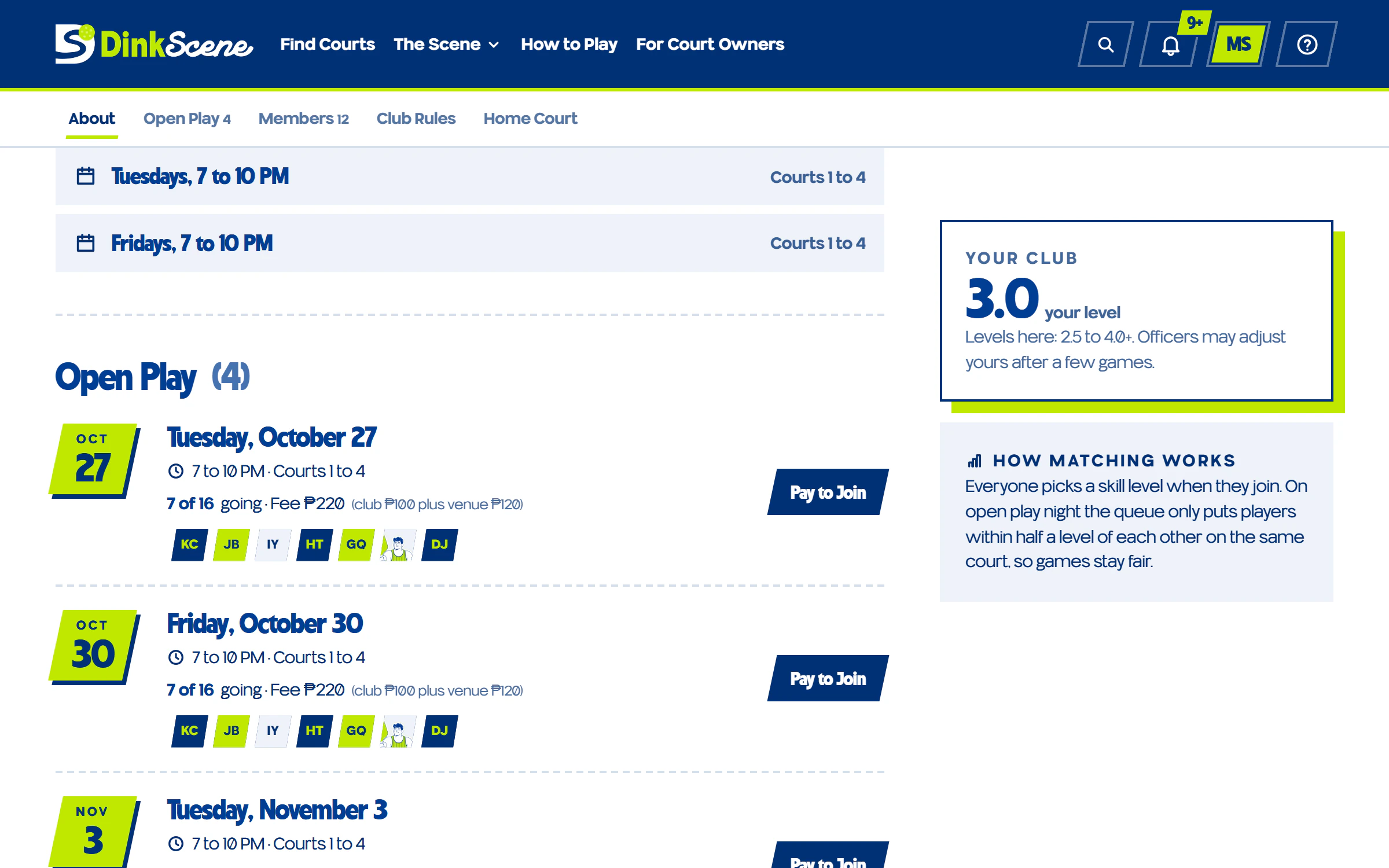
Free nights need only an RSVP. Nights that cost money ask you to pay first.
How to RSVP
- Open the night.
- Tap RSVP.
- Plans changed? Tap Cancel RSVP.
What happens next
- The host sees you on the list and places you in games by level.
See also: Nights you pay for first, What places you in a night
4.4 Nights you pay for first
Paid club nights ask you to pay the club before your spot is held.
- Where to find it:
- The Pay to Join button on a paid night.
- Who can use it:
- Club members
How it works
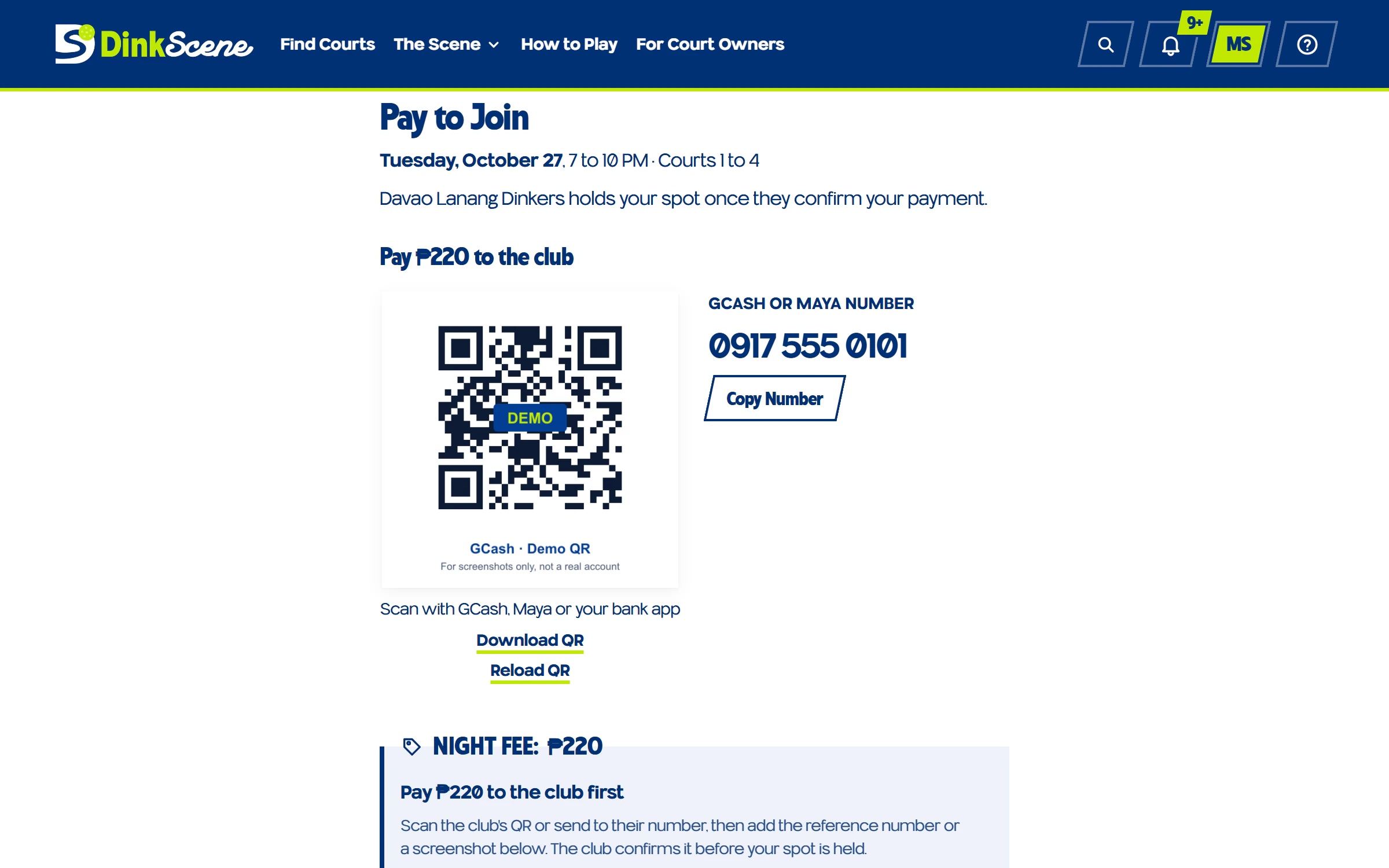
You pay the club's QR or number directly. Your spot is held once the club confirms your payment.
How to pay for a night
- Open the night and tap Pay to Join.
- Scan the club's QR or send to their number. If the QR does not load, tap Reload QR.
- Attach a screenshot of your payment (the reference number is optional) and send it.
What happens next
- Changed your mind before the club confirms? Tap Withdraw.
- If the club could not confirm it, read their note and tap Pay Again.
See also: Keep your reference number, Refunds
4.5 Playing up and Ask the Host
Some nights are set for a level above yours.
- Where to find it:
- On a night's RSVP button, when your level is below the night's.
- Who can use it:
- Club members
How it works
Up for the Challenge? means the night is above your level, so you would be Playing up: faster games and stronger opponents.
Ask the Host means the night is above its level cap for you. The host decides whether you can play.
How to ask the host
- Open the night.
- Tap Ask the Host.
- Wait for the host's answer.
What happens next
- The bell lets you know when the host answers.
See also: What places you in a night, DinkScene Rating
4.6 Your clubs and night notifications
Every club you belong to, and every night it posts, in one place.
- Where to find it:
- My Clubs in your account menu, and the bell in the header.
- Who can use it:
- Club members
How it works
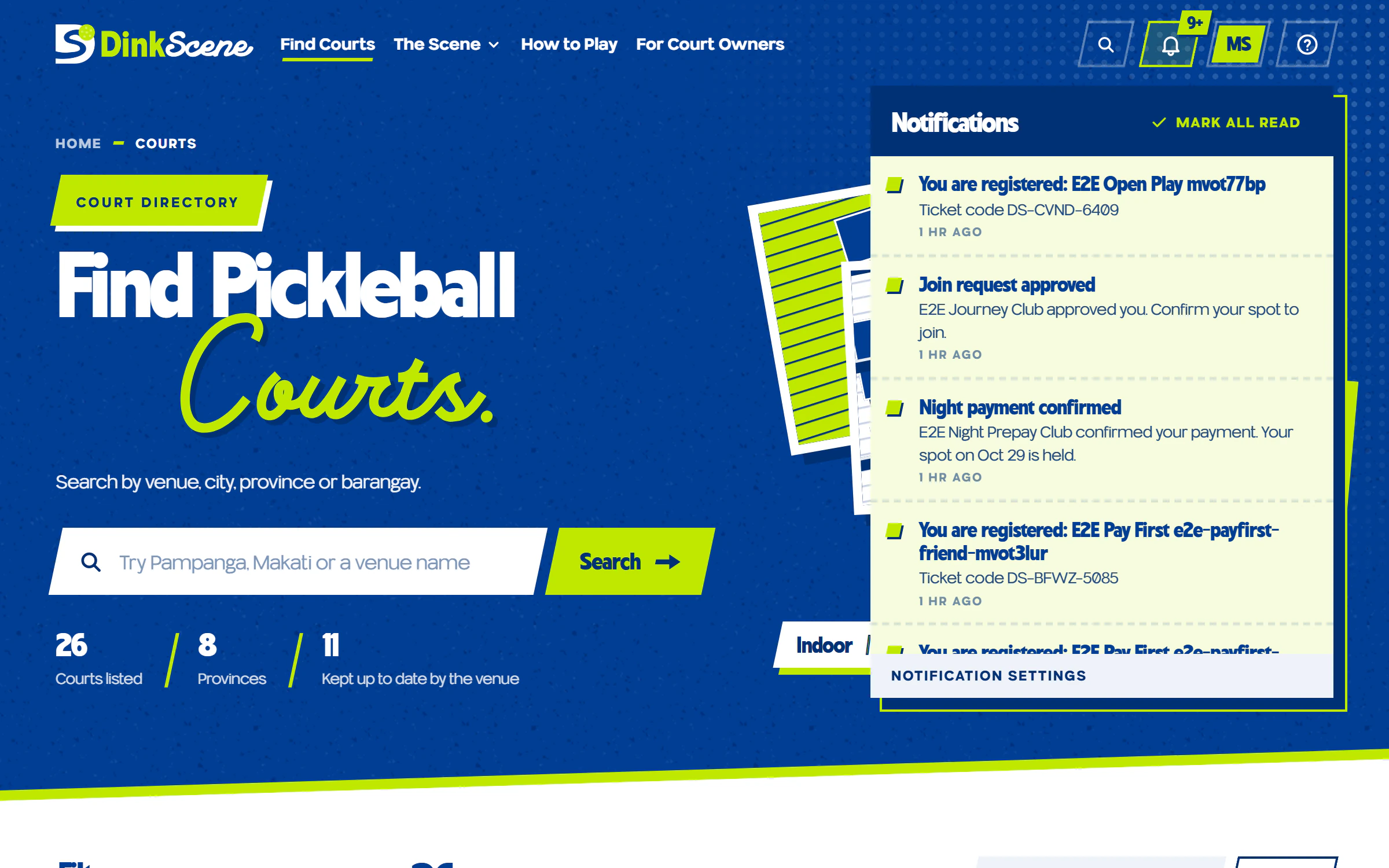
When one of your clubs posts a new night, you get a bell notification. You can also get a weekly summary and a reminder the day before you play.
How to choose your club emails
- Open your account menu and go to settings.
- Find Notifications.
- Turn Club Open Play Nights on or off.
What happens next
- Tap a notification to open the night and RSVP.
See also: RSVP to open play nights, Finding your way around
5.1 Find events, including Club Nights
The Events page lists what is on near you, by date.
- Where to find it:
- Events in the header menu.
- Who can use it:
- Everyone
How it works
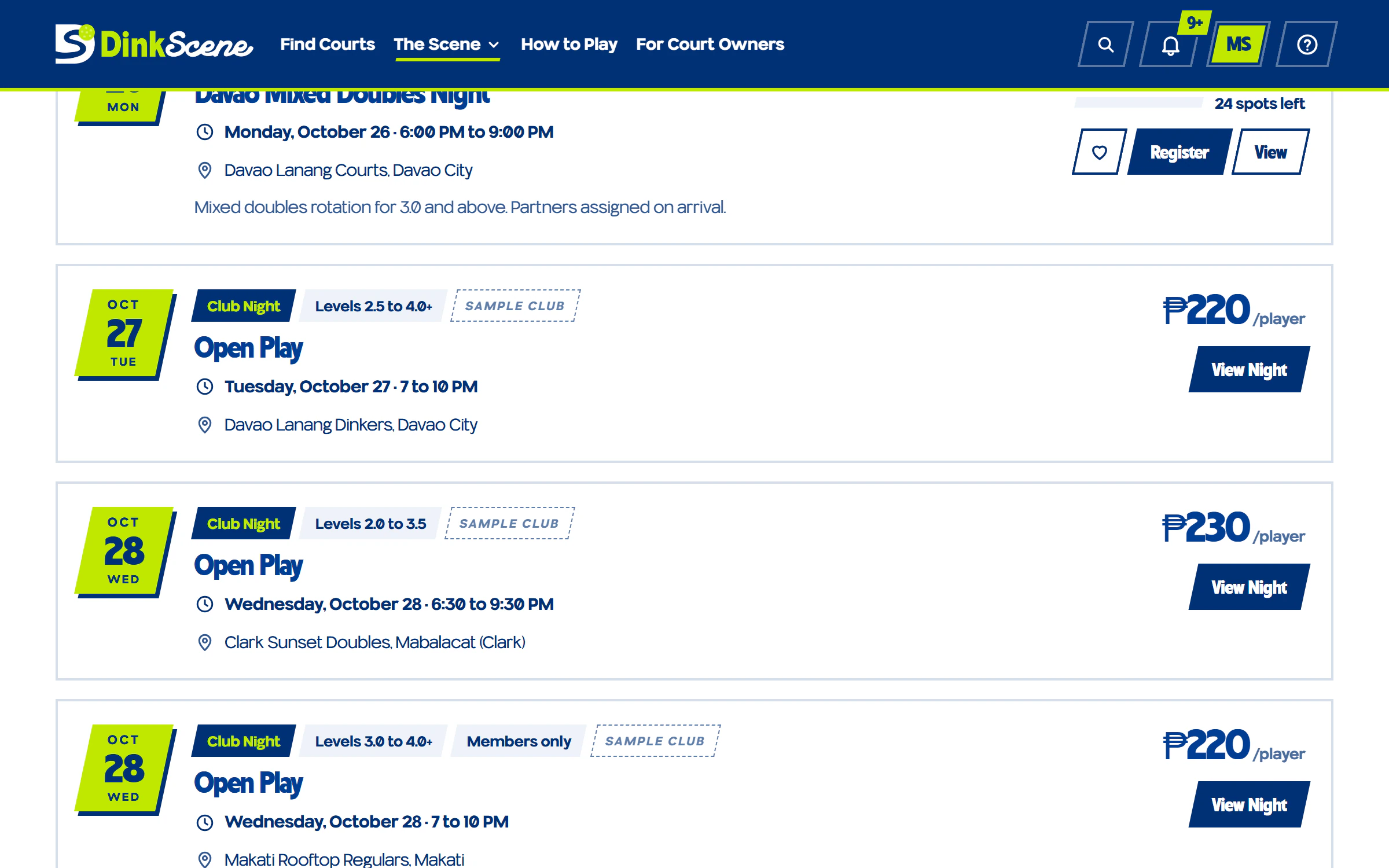
Club open play nights show on the Events page tagged Club Night, beside tournaments and clinics.
Some Club Nights are Members only. View Night opens the night on its club's page.
How to find an event
- Open Events.
- Use the filters to pick a city, a type or a date.
- Tap an event to see the details.
What happens next
- The event's page shows the price, the levels and how to register.
See also: Register for a free event, RSVP to open play nights
5.2 Register for a free event
Free events take one tap.
- Where to find it:
- Register for Free on the event's page.
- Who can use it:
- Everyone
How it works
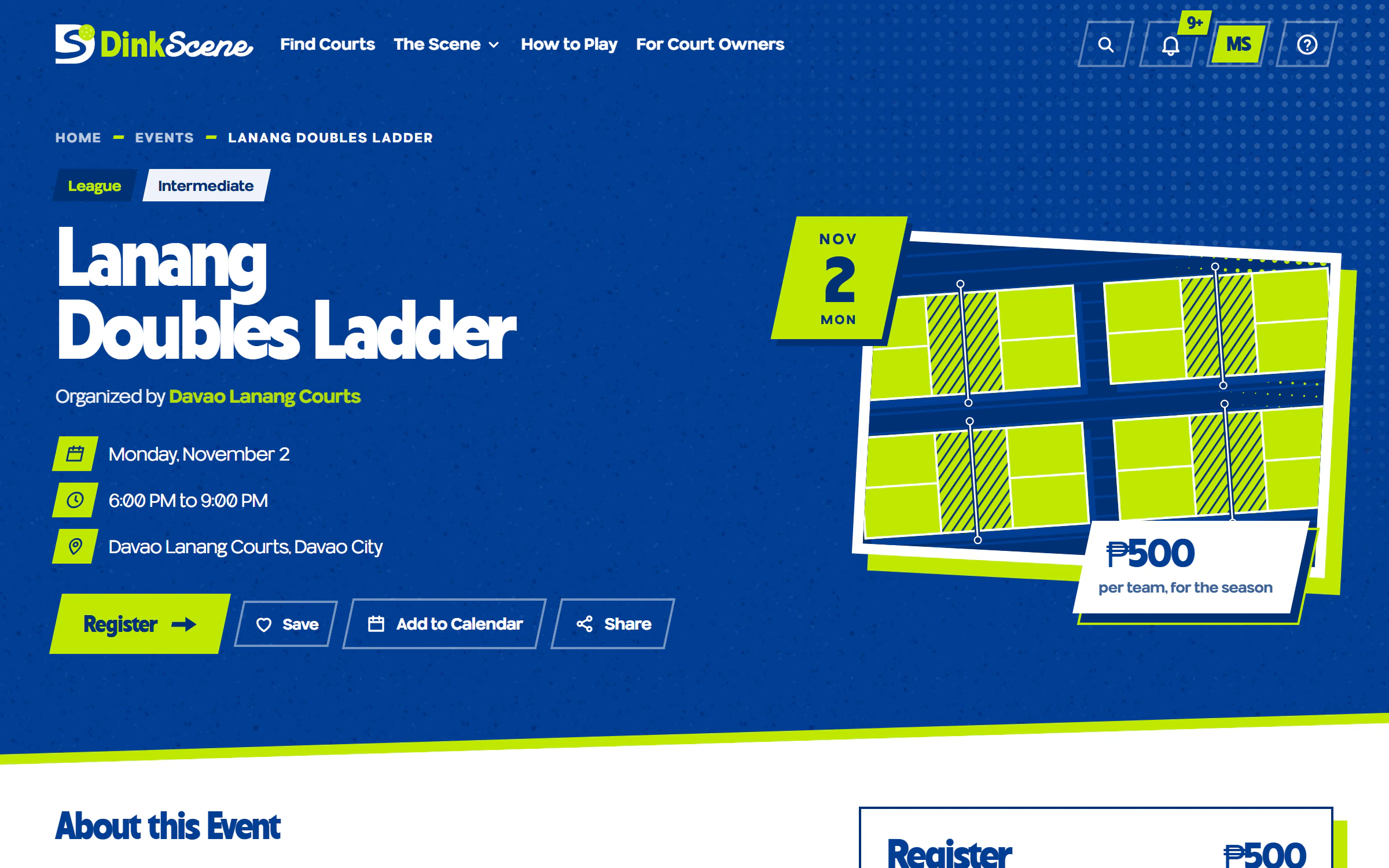
Your ticket goes to the email you register with.
How to register for a free event
- Open the event.
- Tap Register for Free.
- Check your email for the details and your ticket.
What happens next
- Signed in, your ticket also shows in Saved Events.
See also: Your tickets and payment status, Register a friend
5.3 Paid events: pay the organizer first
Paid events ask you to pay the organizer before your spot is held.
- Where to find it:
- Continue to Payment on the event's page.
- Who can use it:
- Everyone
How it works
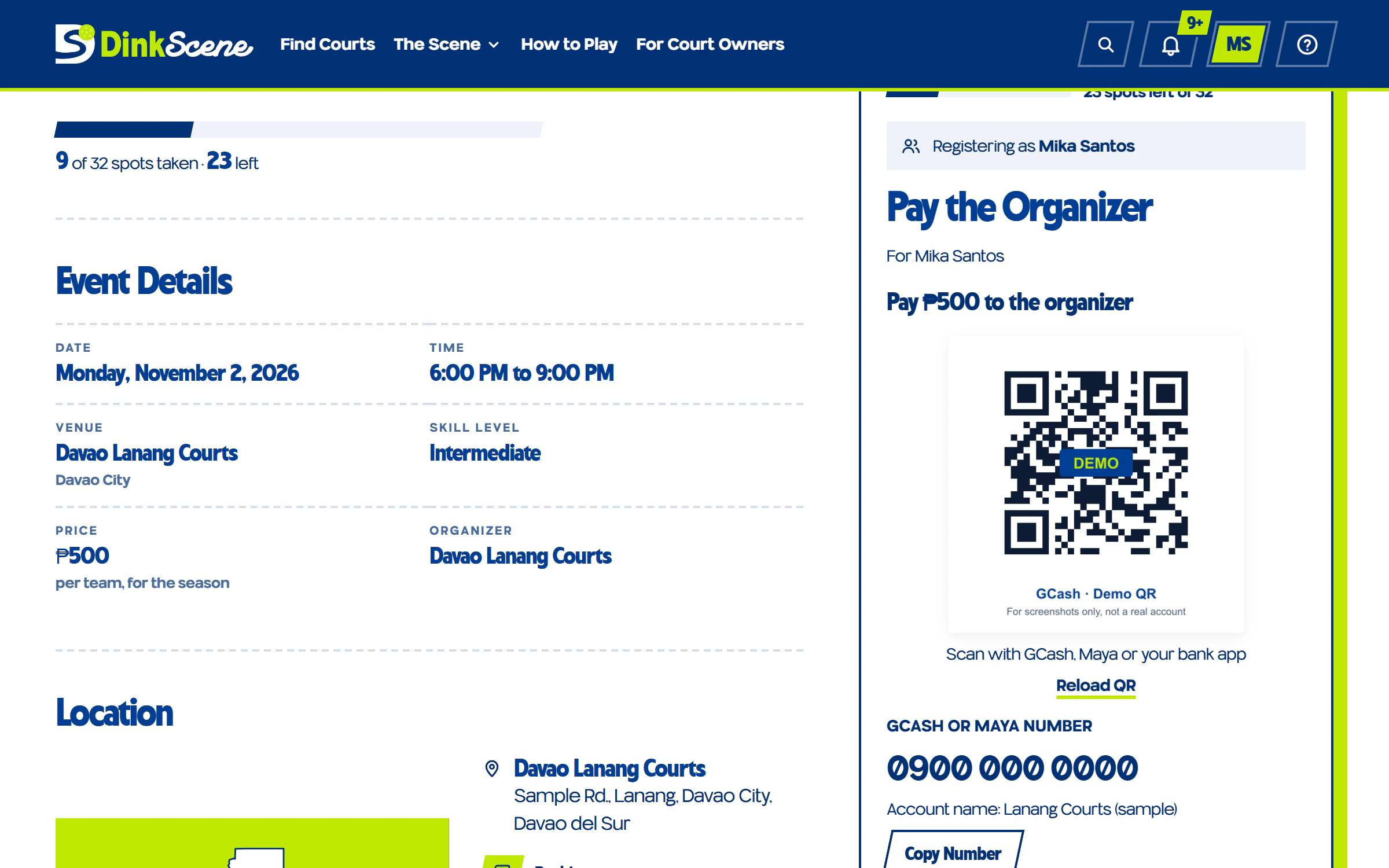
You pay the organizer directly by QR or number. Your spot is held once they confirm your payment.
How to register for a paid event
- Open the event and tap Continue to Payment.
- Scan the organizer's QR or send to their number. If the QR does not load, tap Reload QR.
- Attach a screenshot of your payment (the reference number is optional), then send it.
What happens next
- You see Payment sent, waiting for the organizer to confirm. We tell you either way.
- Before they confirm, Withdraw takes your payment off the list. If they could not confirm it, tap Pay Again.
See also: Keep your reference number, Refunds
5.4 Register a friend
Sign a friend up for the same event.
- Where to find it:
- Register someone else on the event's page, after you register.
- Who can use it:
- Everyone
How it works
Each player needs their own email, so the ticket reaches the right person.
How to register a friend
- Register yourself first on the event's page.
- Tap Register someone else.
- Enter your friend's name and their own email, then register.
What happens next
- Your friend gets their own ticket by email. On a paid event, their spot needs its own payment.
See also: Your tickets and payment status, Paid events: pay the organizer first
5.5 Your tickets and payment status
See every event you registered for and where each payment stands.
- Where to find it:
- Saved Events in your account menu.
- Who can use it:
- Signed-in players
How it works
Each event shows your ticket and a status in words: Payment sent, confirmed, or not confirmed with the organizer's note.
How to check your ticket
- Open your account menu.
- Go to Saved Events.
- Tap the event to see your ticket.
What happens next
- If a payment is not confirmed, read the note and tap Pay Again if it asks.
See also: Troubleshooting, Refunds
6.1 DinkScene Rating
A level worked out from your rated games at clubs.
- Where to find it:
- Your Player Card.
- Who can use it:
- Signed-in players
How it works
After 10 rated games it becomes reliable. Until then it shows how many more games you need.
How to build your rating
- Join a club.
- RSVP to its nights.
- Play rated games the host records.
What happens next
- Your rating updates as the host records your games.
See also: What places you in a night, RSVP to open play nights
6.2 What places you in a night
Clubs place you in games using the best level you have.
- Where to find it:
- It works behind the scenes when you RSVP.
- Who can use it:
- Club members
How it works
We use, in this order:
- your DUPR
- then your DinkScene Rating
- then your level in the club
- then your Self-Rating
How to make sure you are placed right
- Keep your Self-Rating honest on your Player Card.
- Add your DUPR if you have one.
What happens next
- Nights above your level ask whether you are Up for the Challenge?
See also: Self-Rating and DUPR, Playing up and Ask the Host
6.3 Self-Rating and DUPR
Your Self-Rating is the level you think you play at; DUPR is a rating from outside DinkScene.
- Where to find it:
- Your Player Card.
- Who can use it:
- Signed-in players
How it works
Clubs use your Self-Rating until better ratings exist. Your DUPR is self-reported: we do not check it with DUPR.
How to add your DUPR
- Open your Player Card.
- Tap Add Your DUPR.
- Enter your rating and save.
What happens next
- Your DUPR comes first when a club places you in a night.
See also: What places you in a night, Your Player Card
6.4 Leaderboards and tournaments, coming soon
Local leaderboards and club tournaments are on the way.
- Where to find it:
- Leaderboards and Tournaments show a coming soon page for now.
- Who can use it:
- Everyone
How it works
Your rated games already count toward them, and your home city places you on the right local board.
How to get ready
- Add your home city to your Player Card.
- Keep playing rated games at your clubs.
What happens next
- When they open, your place shows on your Player Card.
See also: DinkScene Rating, Your Player Card
7.1 How paying works on DinkScene
Anything that costs money asks you to pay first, straight to the people running it.
- Where to find it:
- The pay step of a booking, a paid event, a club joining fee or a paid club night.
- Who can use it:
- Signed-in players
How it works
You always pay the venue, club or organizer directly by QR, GCash or Maya. DinkScene never takes the money.
- Court bookings: pay the venue.
- Paid events and tournament entries: pay the organizer.
- Club joining fees and paid club nights: pay the club.
How to pay
- Scan the QR or send to the number shown.
- Pay the exact amount shown.
- Attach a screenshot of your payment, then send it.
What happens next
- You see Payment sent until they confirm. We tell you either way.
See also: Keep your reference number, Refunds
7.2 Keep your reference number
Your screenshot proves you paid, and the reference number helps the club find your payment.
- Where to find it:
- Your GCash, Maya or bank app, right after you pay.
- Who can use it:
- Signed-in players
How it works
The venue, club or organizer matches it against their wallet before they confirm.
How to keep proof of payment
- Take a screenshot of the success screen.
- Note the reference number.
- Keep both until your spot is confirmed.
What happens next
- Include it in any message to the organizer or to our support team.
See also: Contact support, Refunds
7.3 Refunds
Refunds come from whoever you paid.
- Where to find it:
- The venue, club or organizer's contact details on their page.
- Who can use it:
- Signed-in players
How it works
DinkScene never holds your money, so refunds are with the venue, club or organizer.
How to ask for a refund
- Find the contact details on the court, club or event page.
- Message them with your name and your reference number.
- Say why you are asking for a refund.
What happens next
- They send the refund back the way you paid. If they do not answer, tell our support team.
See also: Keep your reference number, Contact support
7.4 Never share your password
DinkScene will never ask for your password or a one time code.
- Where to find it:
- Anywhere someone asks you for them, even someone who says they are from DinkScene.
- Who can use it:
- Everyone
How it works
Our team never needs your password to help you. Anyone asking for it is not us.
How to keep your account safe
- Use a password you do not use anywhere else.
- Never share it, or a one time code, with anyone.
- If you think someone has it, reset it right away.
What happens next
- Tell our support team about anyone asking for your password.
See also: Sign in and passwords, Contact support
8.1 Troubleshooting
Quick fixes for the problems players run into most.
- Where to find it:
- Right here, by symptom.
- Who can use it:
- Everyone
How it works
Find the line that matches what you see, then follow its steps.
How to fix "I can't sign in"
- Check you are using the email you signed up with.
- If it says "Confirm your email first", open the link we sent.
- Still stuck? Tap Forgot password? and set a new one.
How to fix "I didn't get the email"
- Check your spam or promotions folder.
- For a confirm link, tap Resend the Link and wait a minute.
- If you opened DinkScene inside another app, try your phone's browser.
How to fix "My payment isn't confirmed"
- Give them some time: payments are checked by hand.
- Read any note from the venue, club or organizer.
- If you did pay, tap Pay Again and attach your screenshot (add the reference number too, if you have it).
How to fix "Registration is closed"
- The organizer has stopped taking players for this event.
- Look for another event, or message the organizer.
What happens next
- Not fixed? Send us a message with what you see.
See also: Contact support, Confirm your email
Send our team a message about your account, a booking, a club or an event.
- Where to find it:
- Get Support at the top of this guide, or the Help button in the bottom corner.
- Who can use it:
- Everyone
How it works
We read every message and reply by email.
- What you were trying to do.
- What you saw, word for word if there was a message.
- Your reference number or booking code, if it is about a payment.
How to contact support
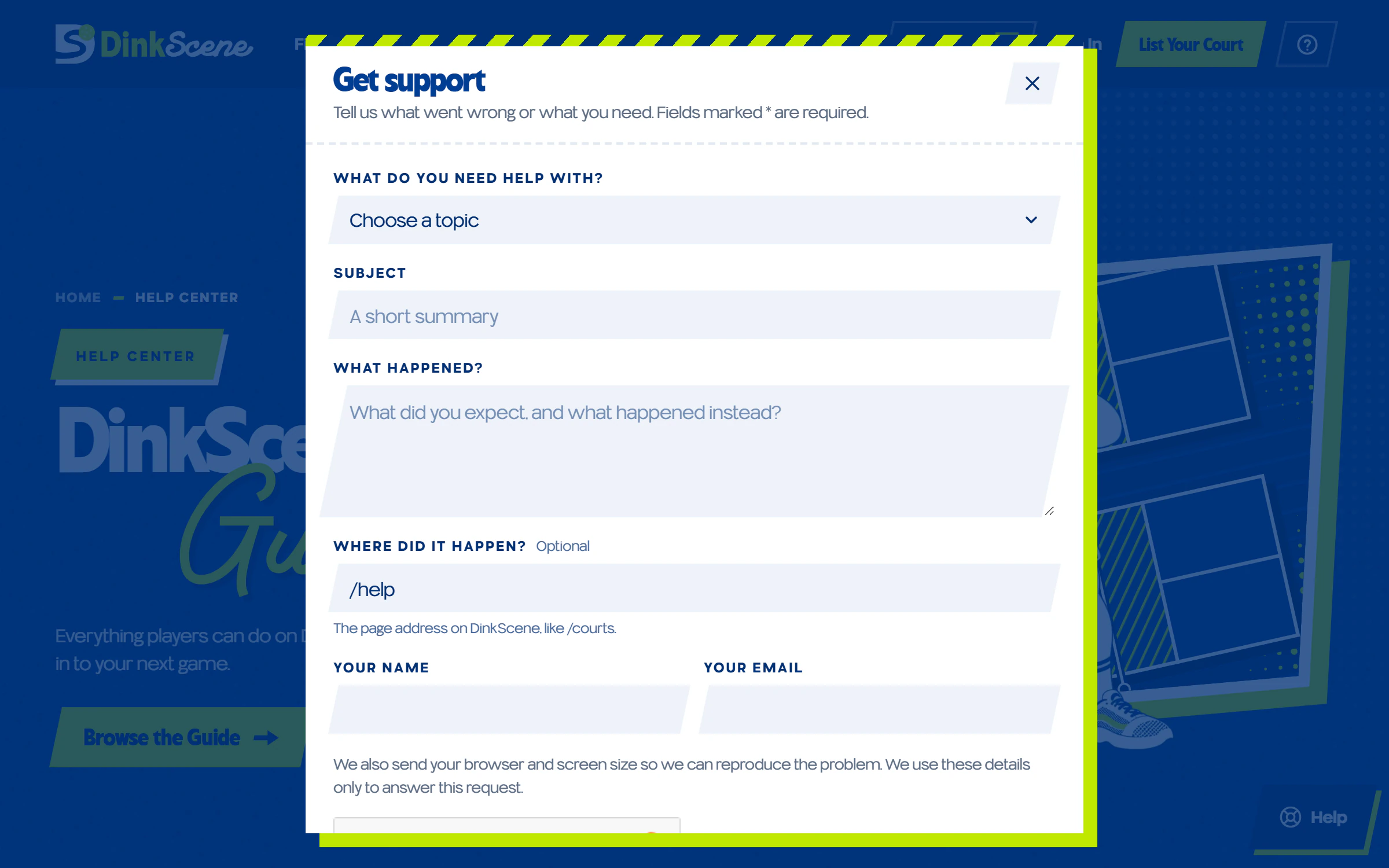
- Tap Get Support.
- Pick a topic and tell us what happened.
- Send it.
What happens next
- We reply to your email. Keep your reference number handy.
See also: Troubleshooting, Keep your reference number